Manage your company's EV chargers

Register your chargers, decide who may use them and how much, and follow every charge. People charge from their phone, with an RFID card, or with a company car's card.

  • Any OCPP charger
  • Connector states in real time
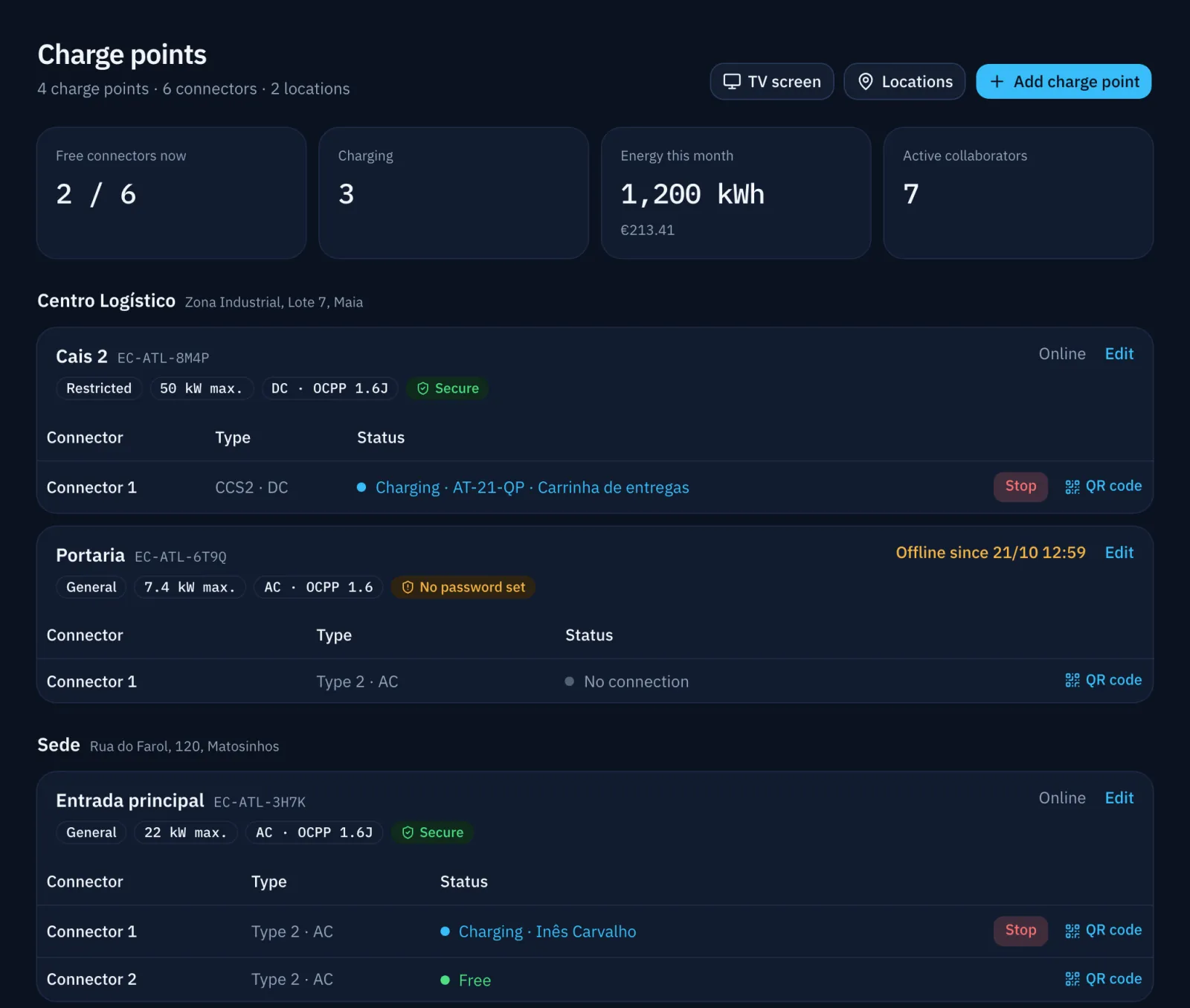
Charge points list: each connector free, charging with the name of who is charging, or in fault.
Who it is for

Companies with chargers at the workplace

For chargers used by staff and by fleet cars. Each company sees only its own data.

Features

What the platform does

The images are from the application itself, with demo data.

Adding and configuring a charger

"Add charge point" reserves a Charger ID and shows what to set on the charger: OCPP 1.6J or 2.0.1, the server address and the Charger ID. When it first connects, the charger appears by itself with its make, model and connectors.

The same screen sets the charger's password, location, power and who may use it. Remote commands restart the charger or release a stuck cable.

Charge points › Configure
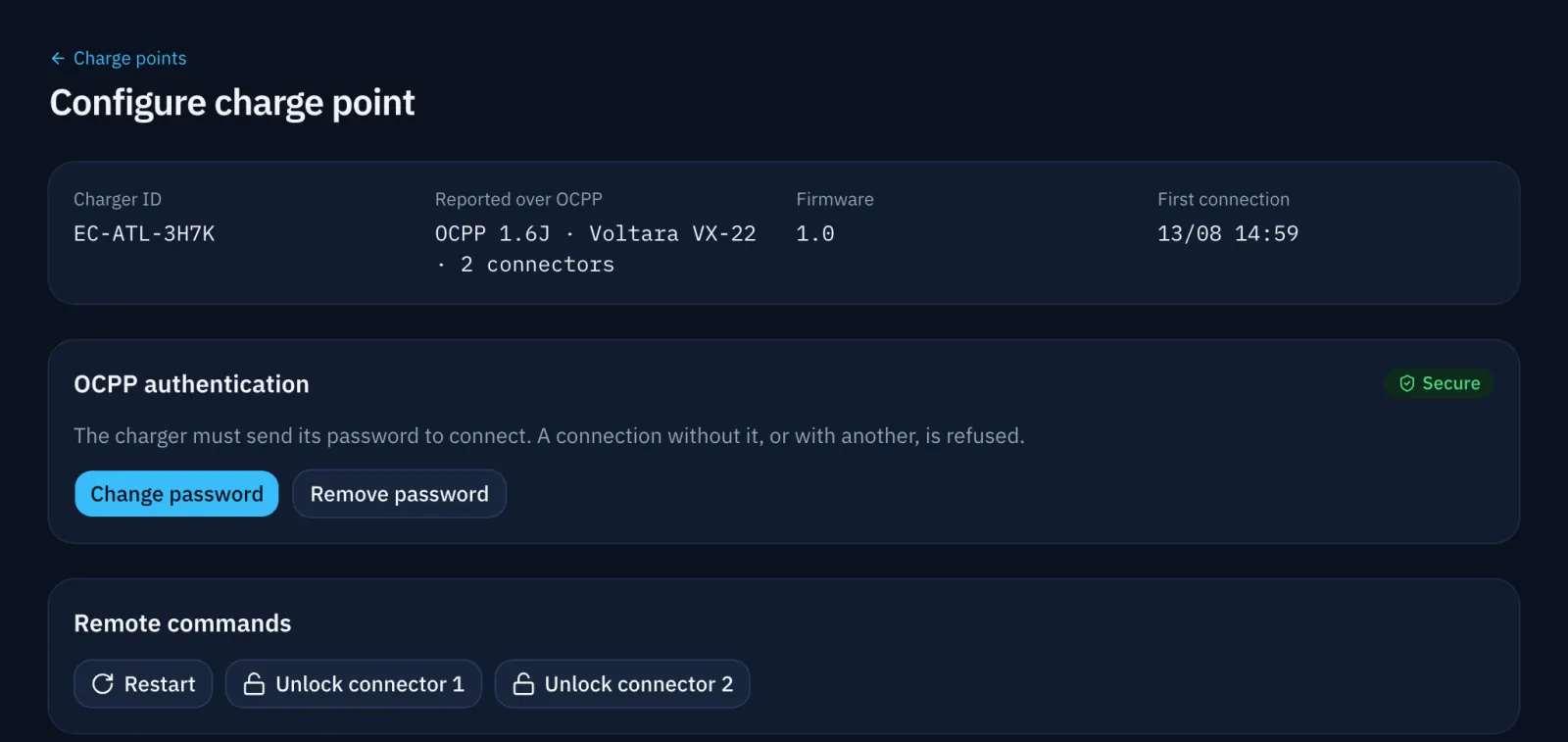
A charger's configuration screen, with connection security and remote commands.

Collaborators and limits

Each collaborator has a monthly energy limit (kWh), a maximum power (kW) and access to restricted chargers. When the limit is reached, the charge stops on its own and no new one starts until next month.

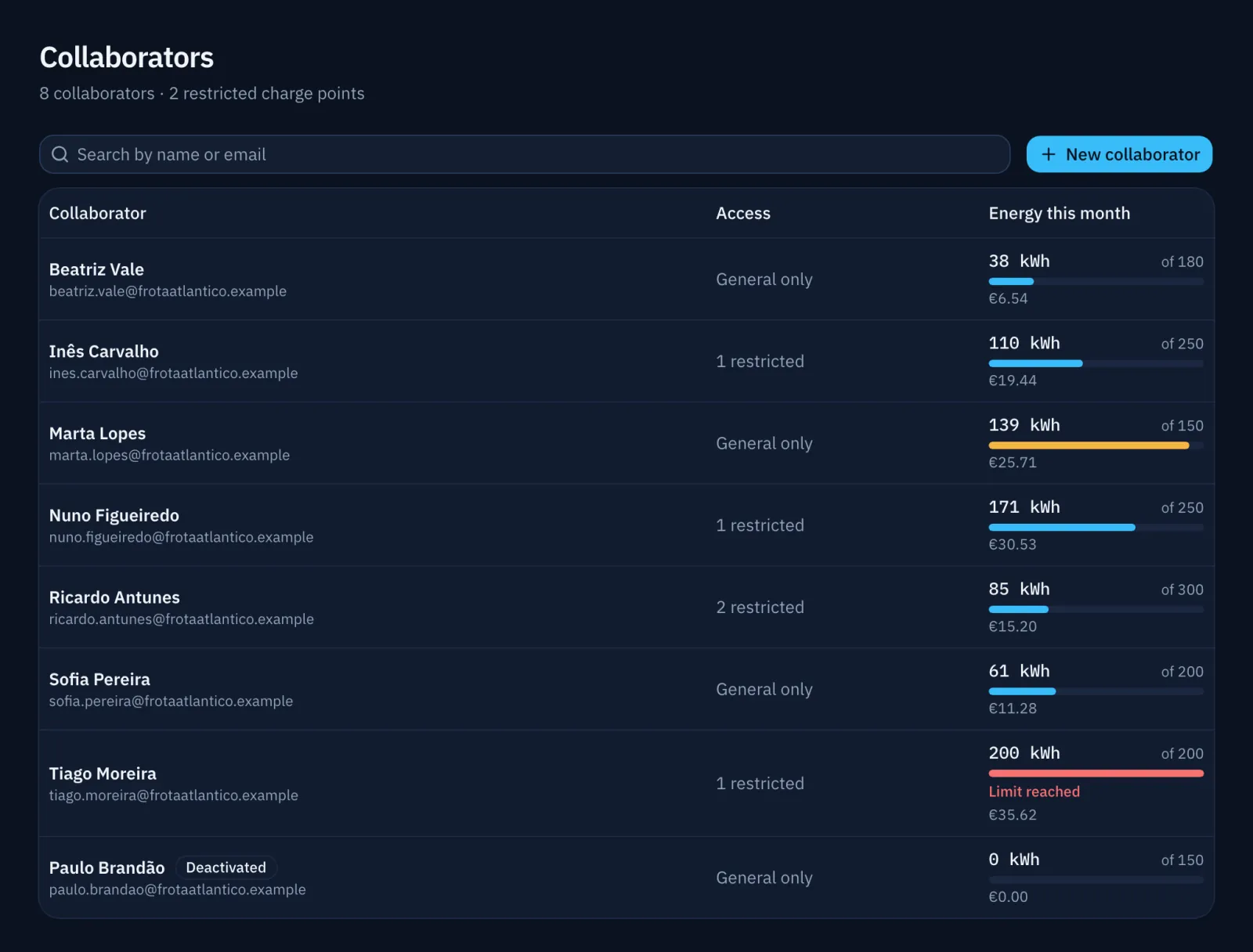
The list shows each person's energy this month and its cost, when a price is set. The company can also have one monthly limit for everyone together.

Collaborators

Collaborators list with each person's energy this month against their limit.

Company cars

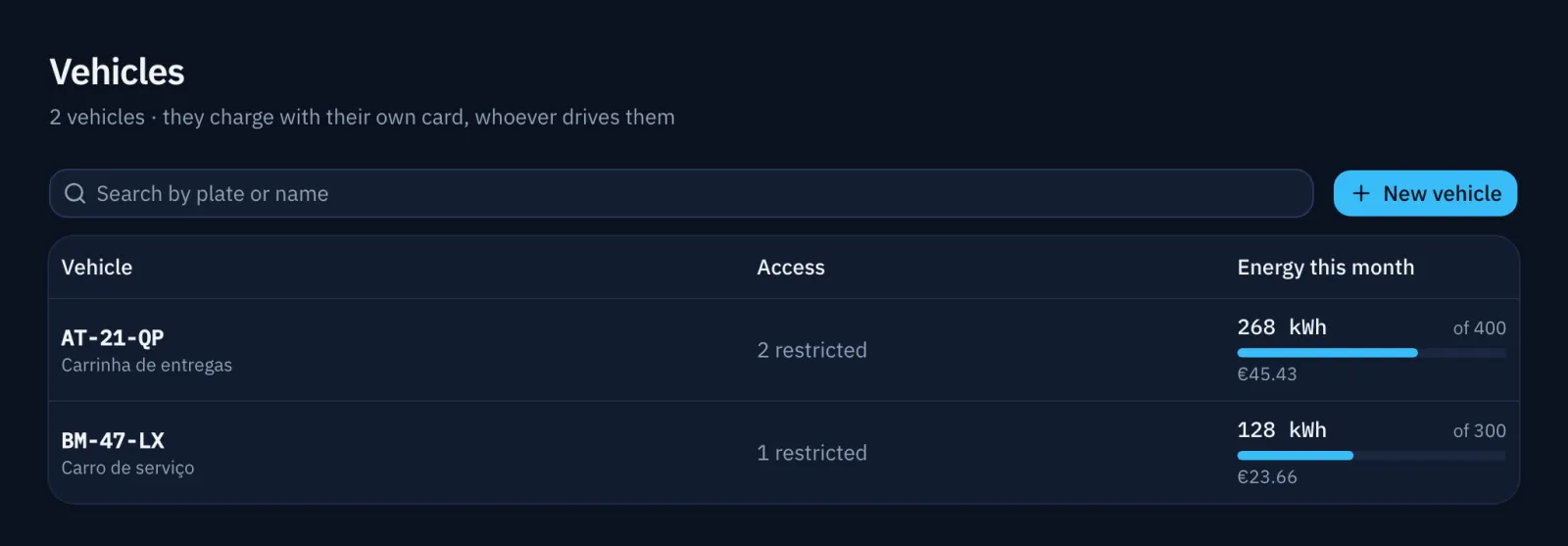
A fleet car charges with its own card, whoever is driving. It follows the same rules as a collaborator: monthly limit, maximum power and access to restricted chargers.

It shows by its plate on the chargers list, the TV screen and the history.

Vehicles

Company cars listed by plate, with this month's energy and the limit.

RFID cards

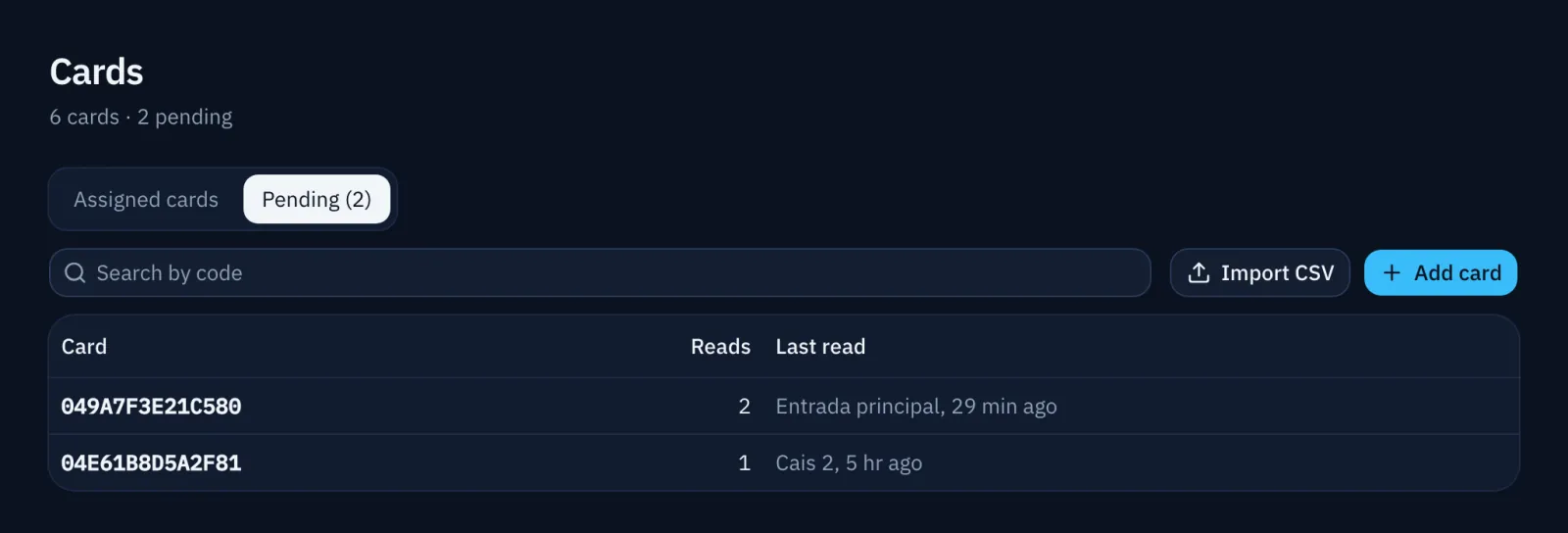
To register a new card, tap it on any of the company's chargers. It shows up under Pending within seconds, with where and when it was read, and the administrator gives it to a collaborator or a car.

Cards can also be typed in or imported from a CSV file. A lost card is blocked on every charger at once.

Cards › Pending

Pending cards, read at a charger and waiting to be assigned.

The collaborator's app

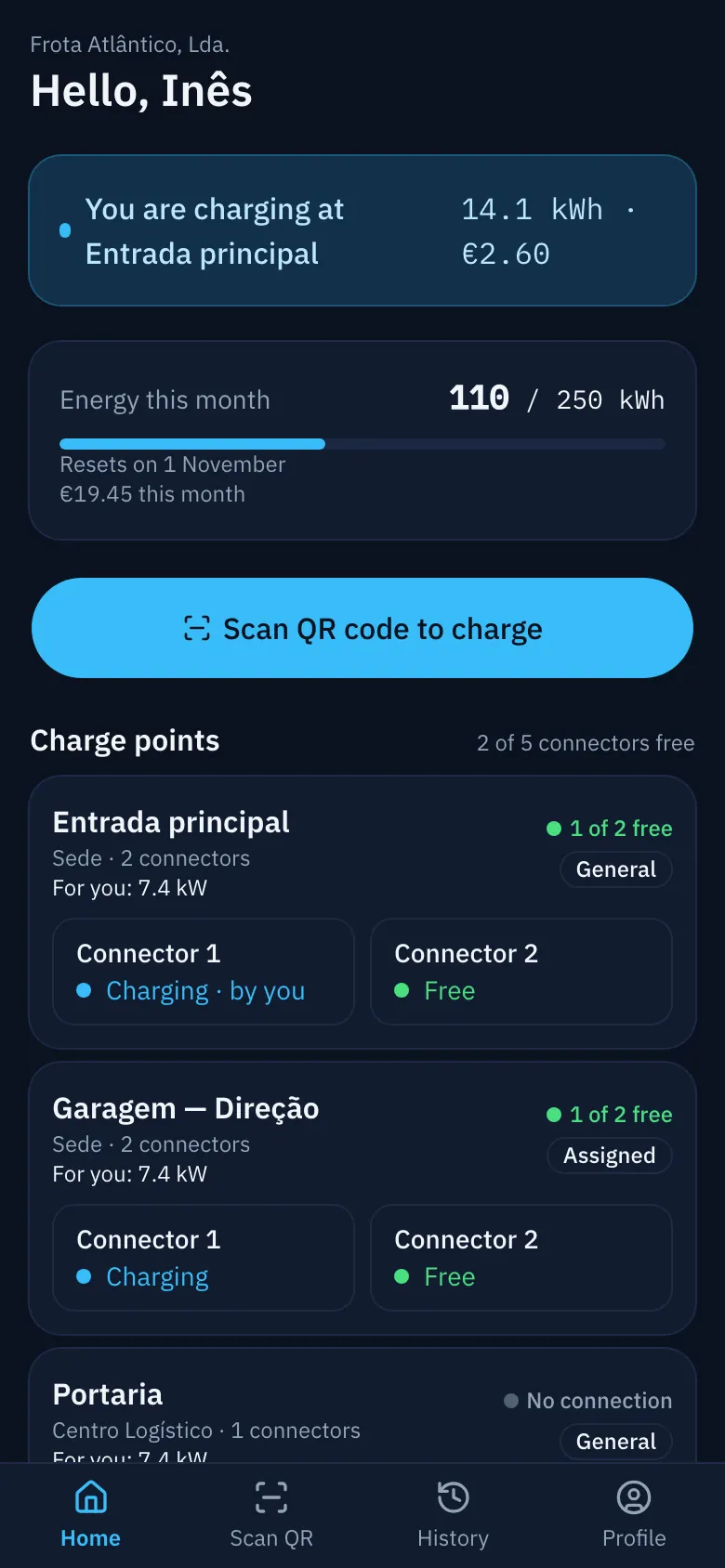
It runs in the phone's browser, with nothing to install. The collaborator scans the connector's QR code, sees the power available to them and whether the cable is plugged into the car, and starts the charge.

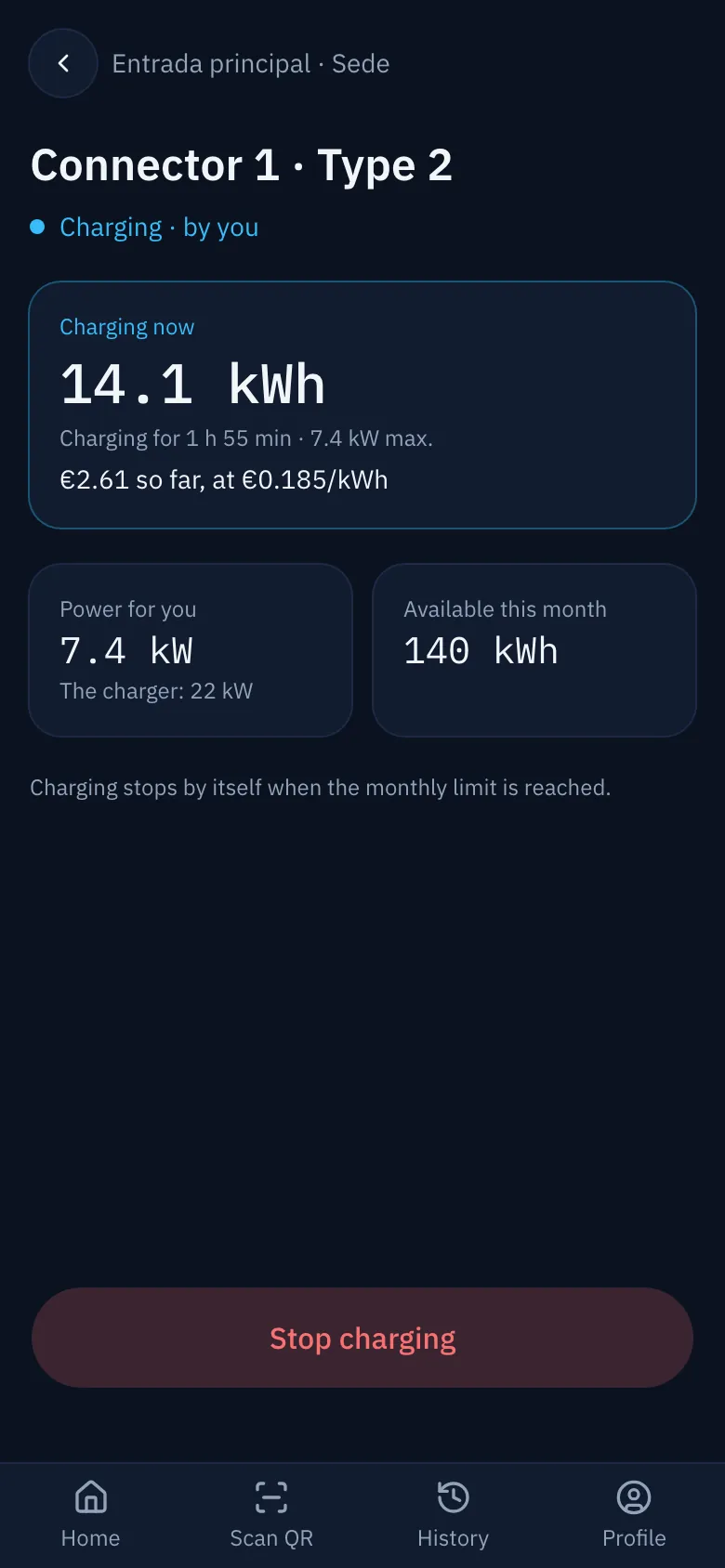
While charging they see the energy, duration and cost, and can stop it. Their history covers the last 12 months and exports to Excel.

Home · Connector

The collaborator's home screen: this month's energy against the limit and the chargers they may use.
The connector page during a charge: energy, duration, cost and the stop button.

Power sharing

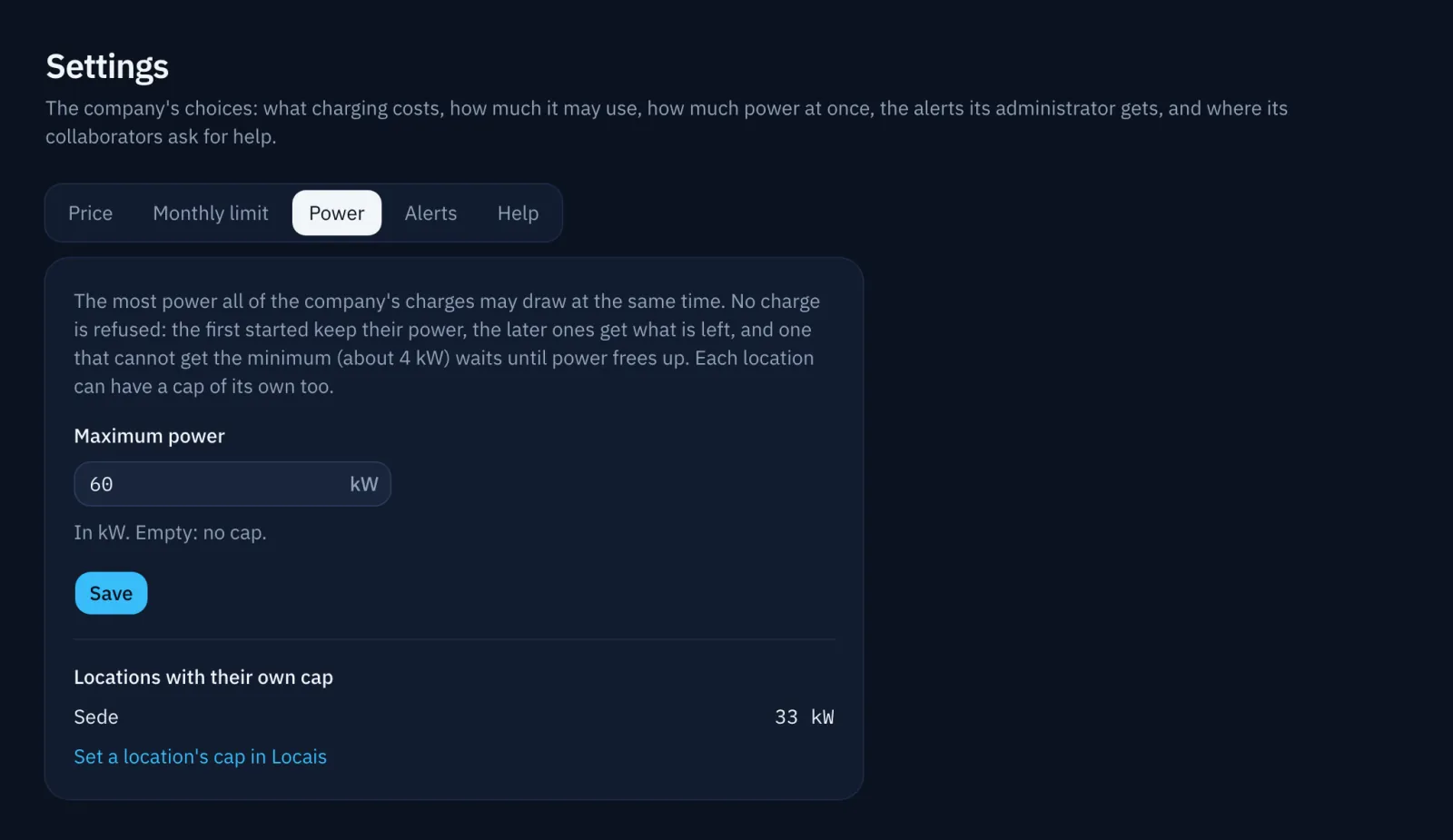
Set a maximum power for the company and for each location, such as the contracted power. Running charges stay below it together.

The first charges to start keep their power and later ones get what is left. A charge that cannot get about 4 kW waits and starts as soon as power frees up. No charge is refused for lack of power.

Settings › Power

Settings, Power tab: the company's maximum power and the locations with a cap of their own.

Prices and costs

With a price per kWh, for the company or for a location with its own energy contract, every charge shows its cost in the history, the export, the lists and on the collaborator's phone.

Each charge keeps the price it started with, so a new price never changes past costs. Without a price, the application shows no costs.

Charging sessions

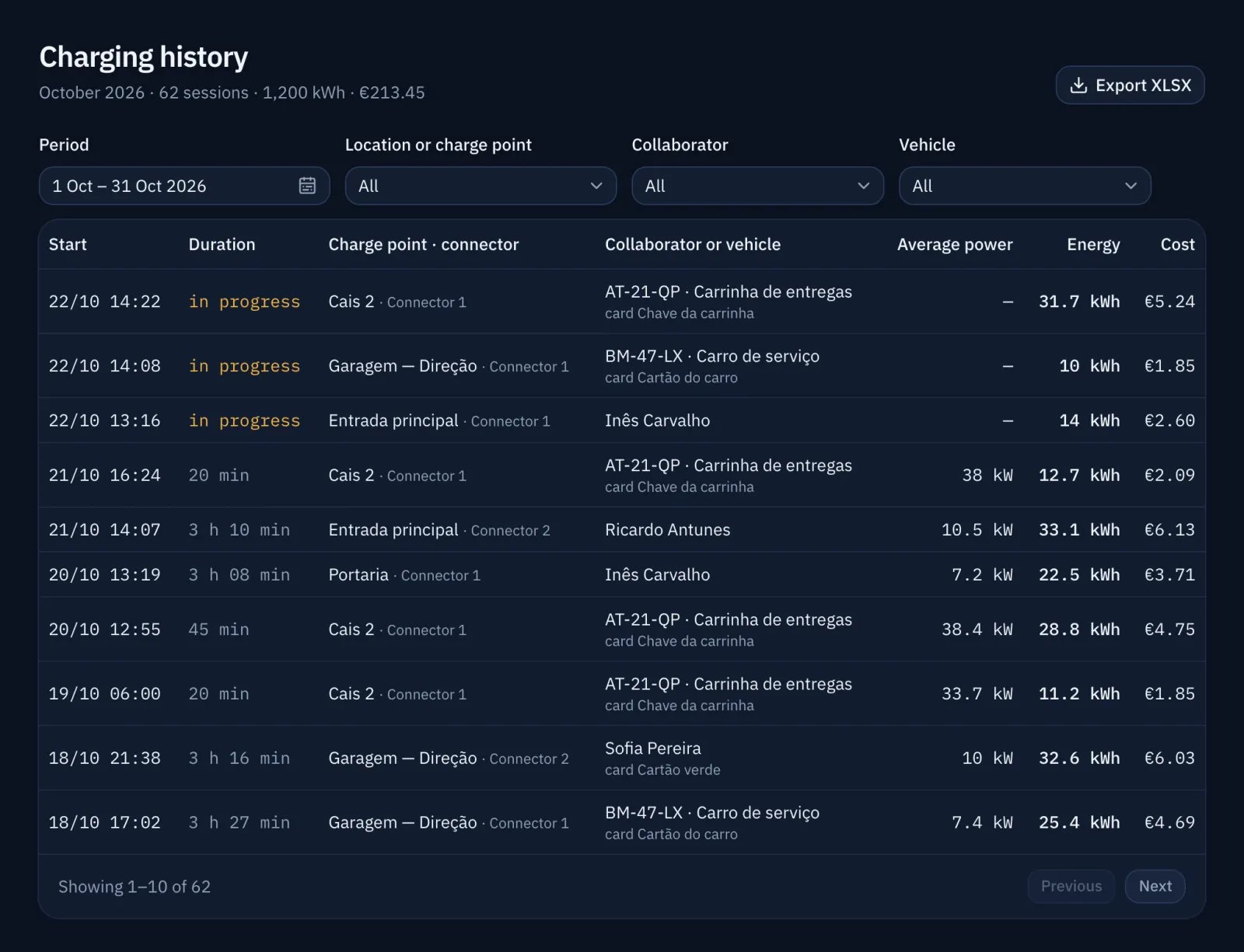
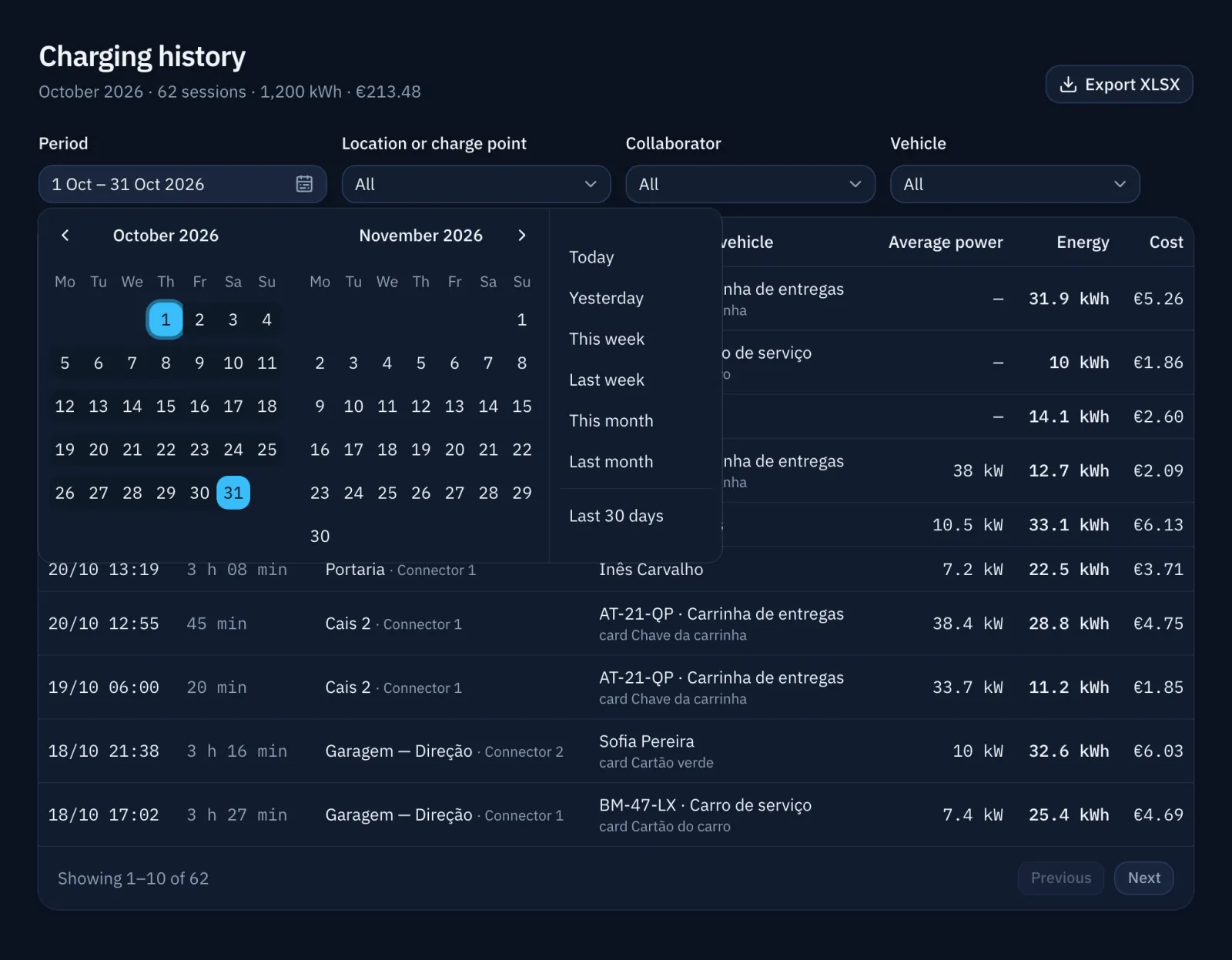
Charging history with each charge's cost and the period's total.

History and export

Every charge at the company's chargers: who charged, with which card, where, when and how much energy. Filters by period, location, charger, collaborator and car.

Whatever is filtered exports to Excel.

Charging sessions

History with the period, location and person filters, and the export button.

TV screen

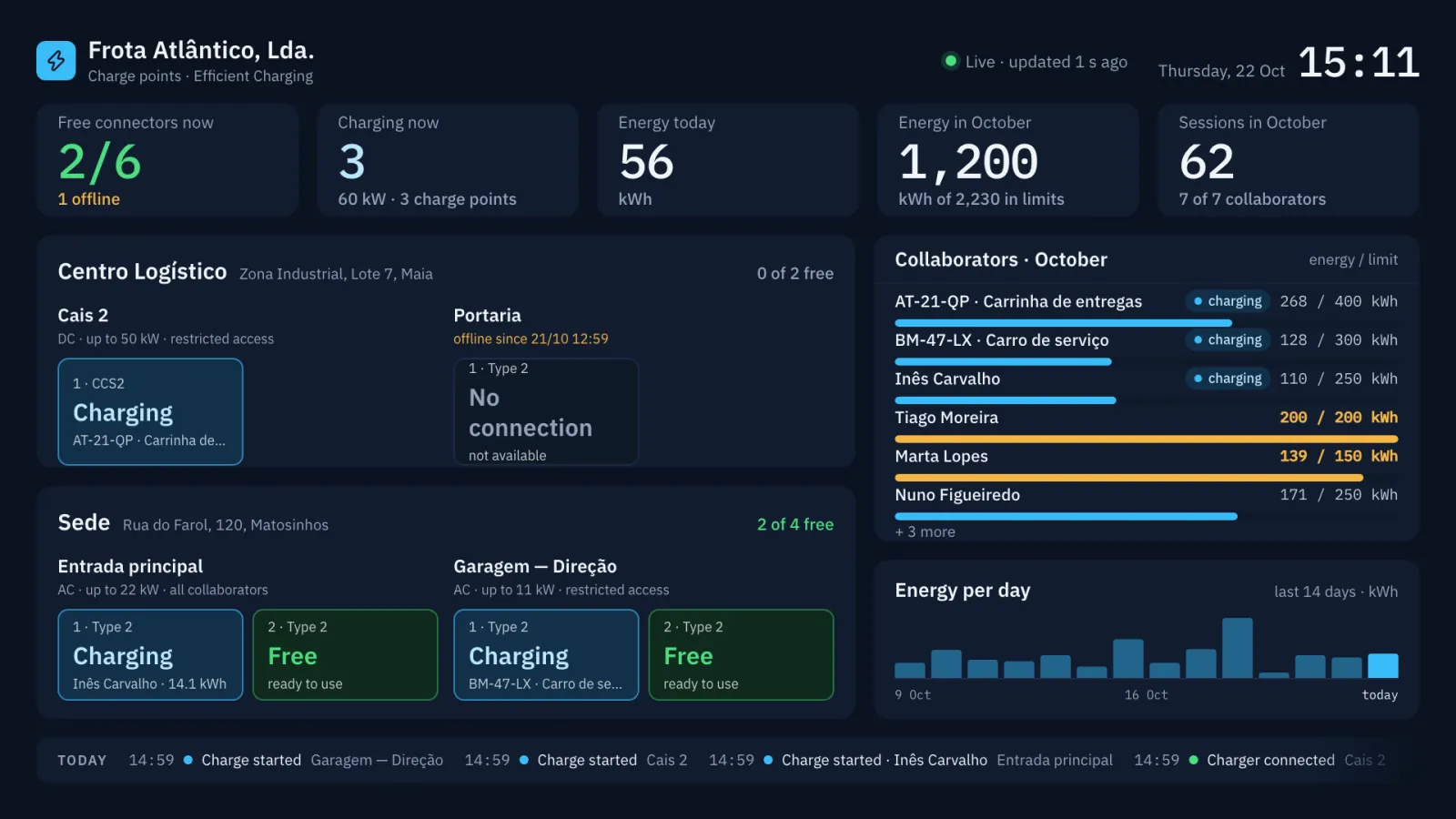
A read-only address for a TV in the car park or at reception. It shows free connectors, who is charging, today's and this month's energy and today's events, live.

Collaborators appear by their initials, unless the company prefers full names.

Charge points › TV screen

The company's TV screen with its locations, chargers and who is charging.

Alerts and notifications

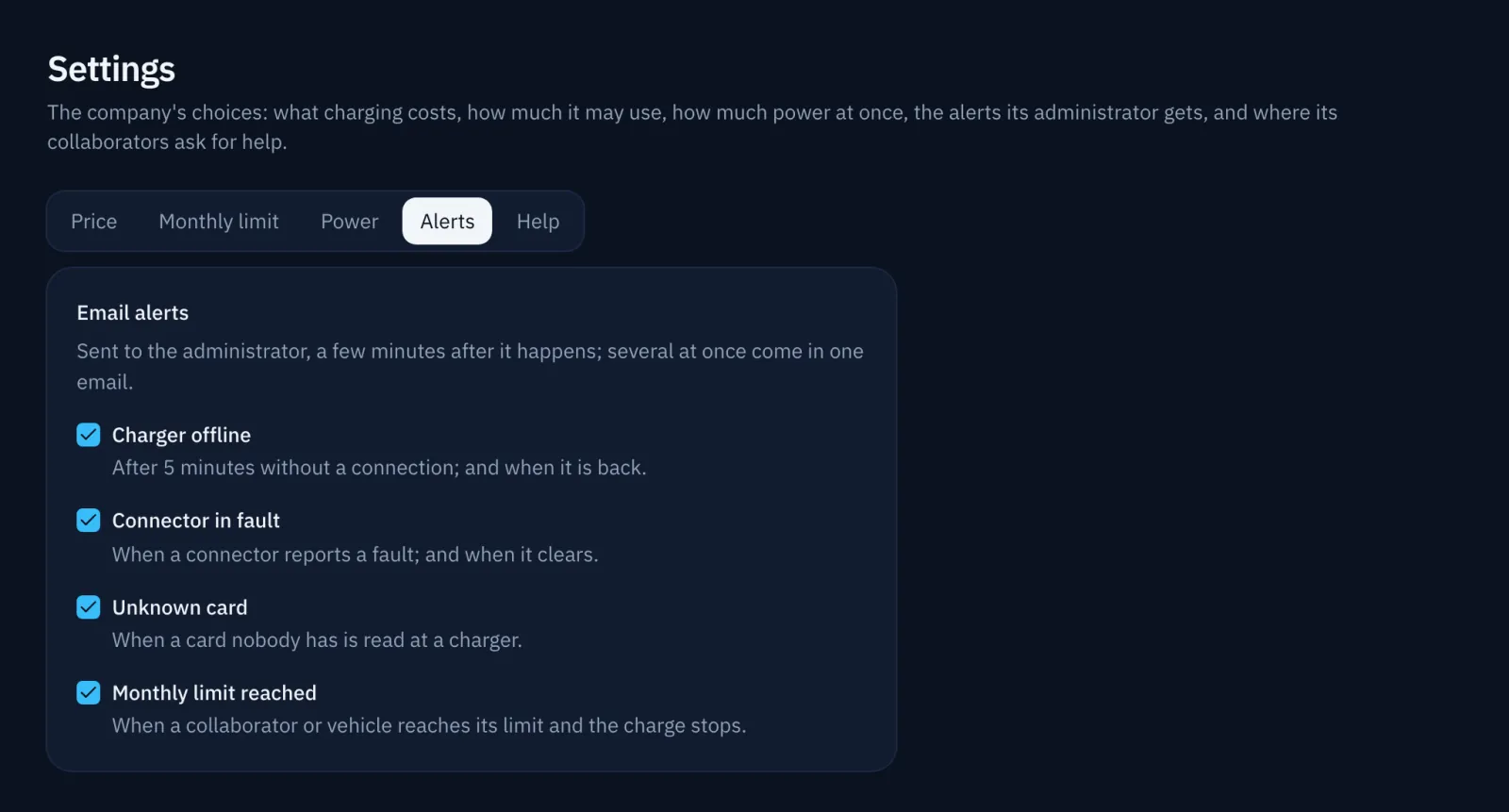
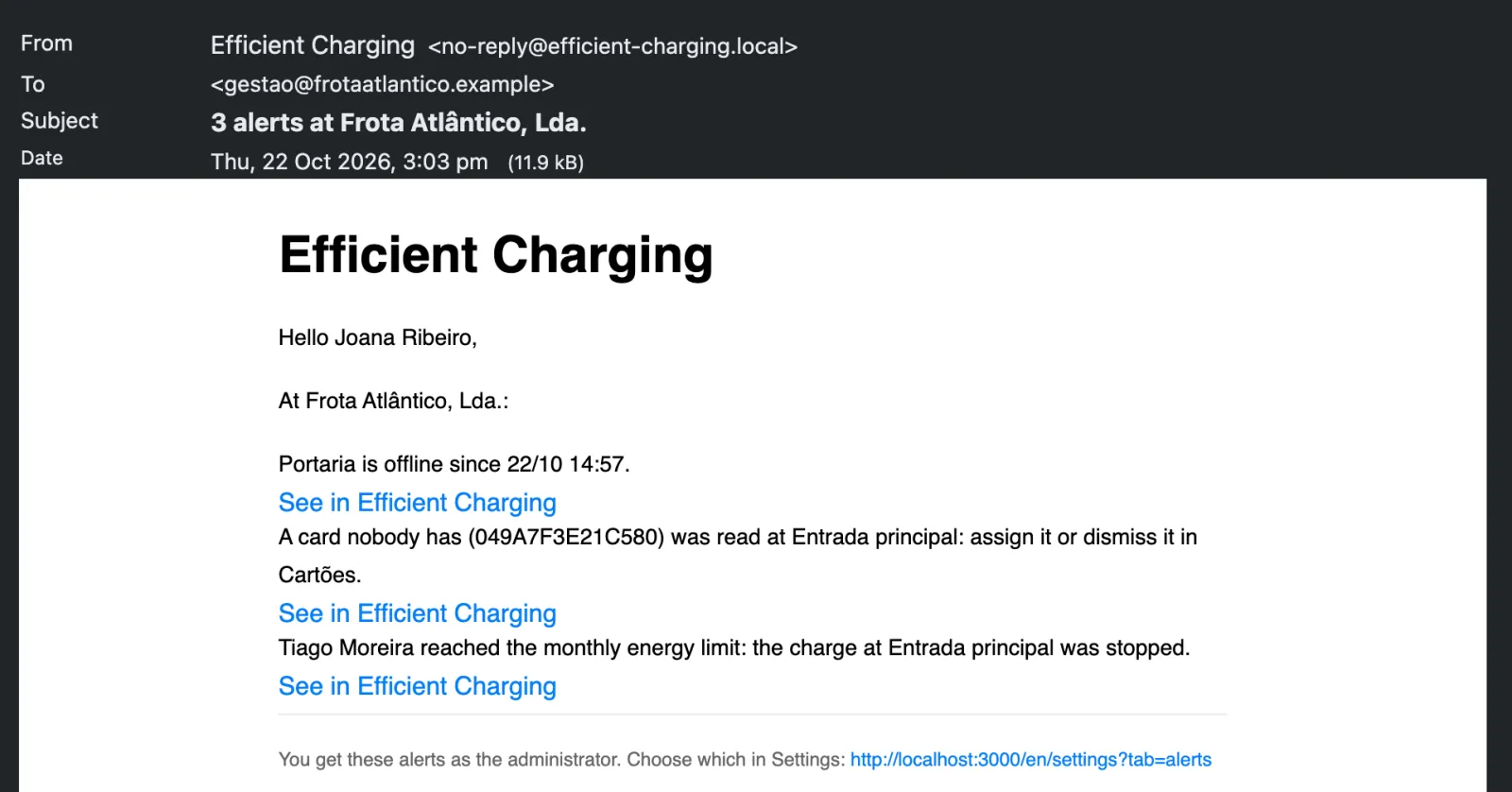
The administrator gets an email when a charger has been offline for 5 minutes, a connector reports a fault, an unknown card is read or a limit is reached. Several alerts at once arrive in one email, and each kind can be turned off.

Collaborators can choose to be told when a charge ends or is interrupted, and when they reach 80% of their monthly limit.

Settings › Alerts

Settings, Alerts tab, with each kind of alert turned on or off.
An alert email, as the administrator receives it.

Security and audit

Sign-in uses a code sent by email; there are no passwords to manage. Each charger can have its own password. Without one, the platform checks the make, model and serial number on every connection and refuses another device using the same Charger ID.

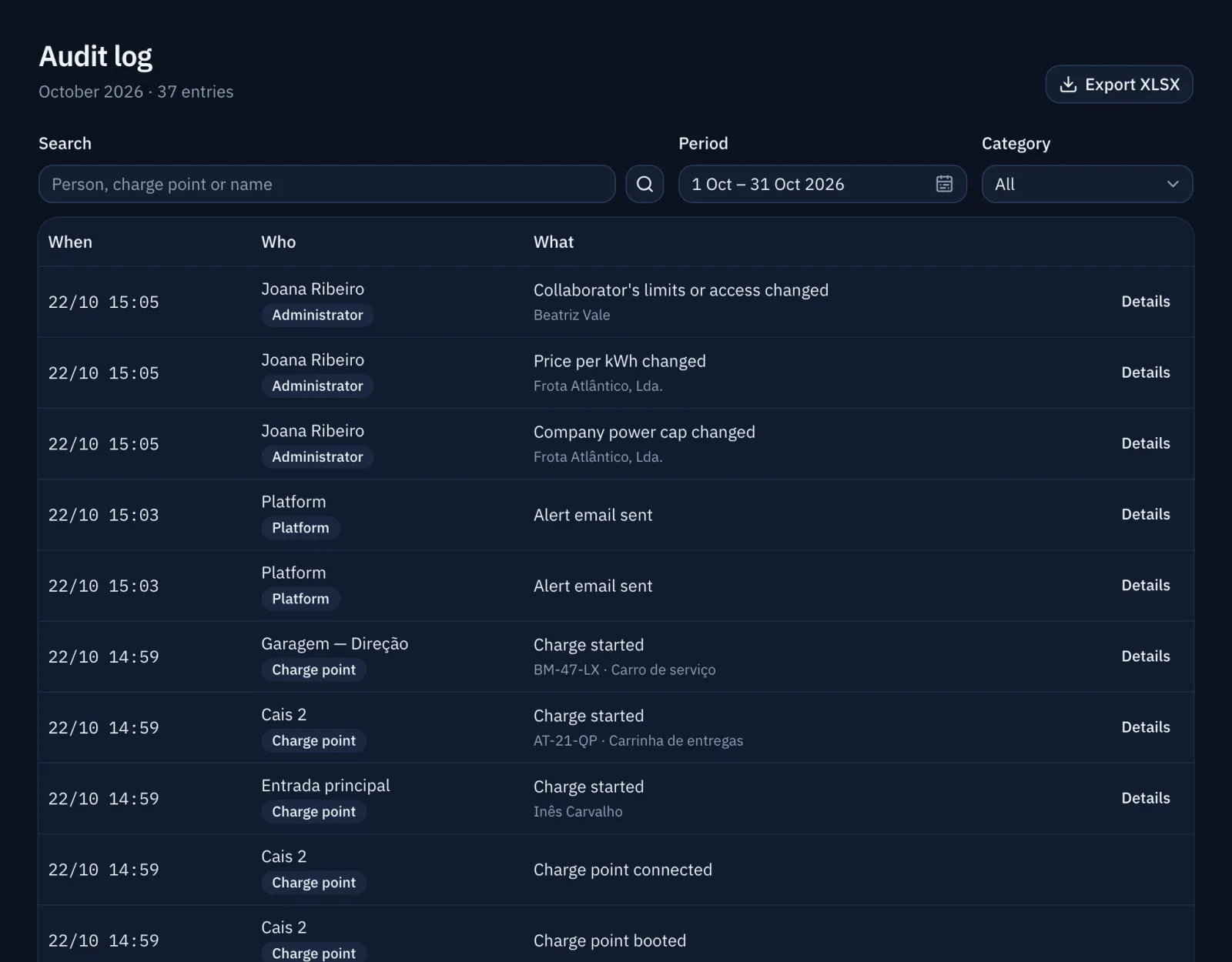
Every action goes into an audit log that cannot be changed, with filters and an Excel export.

Audit log

Audit log showing who did what and when.

Privacy

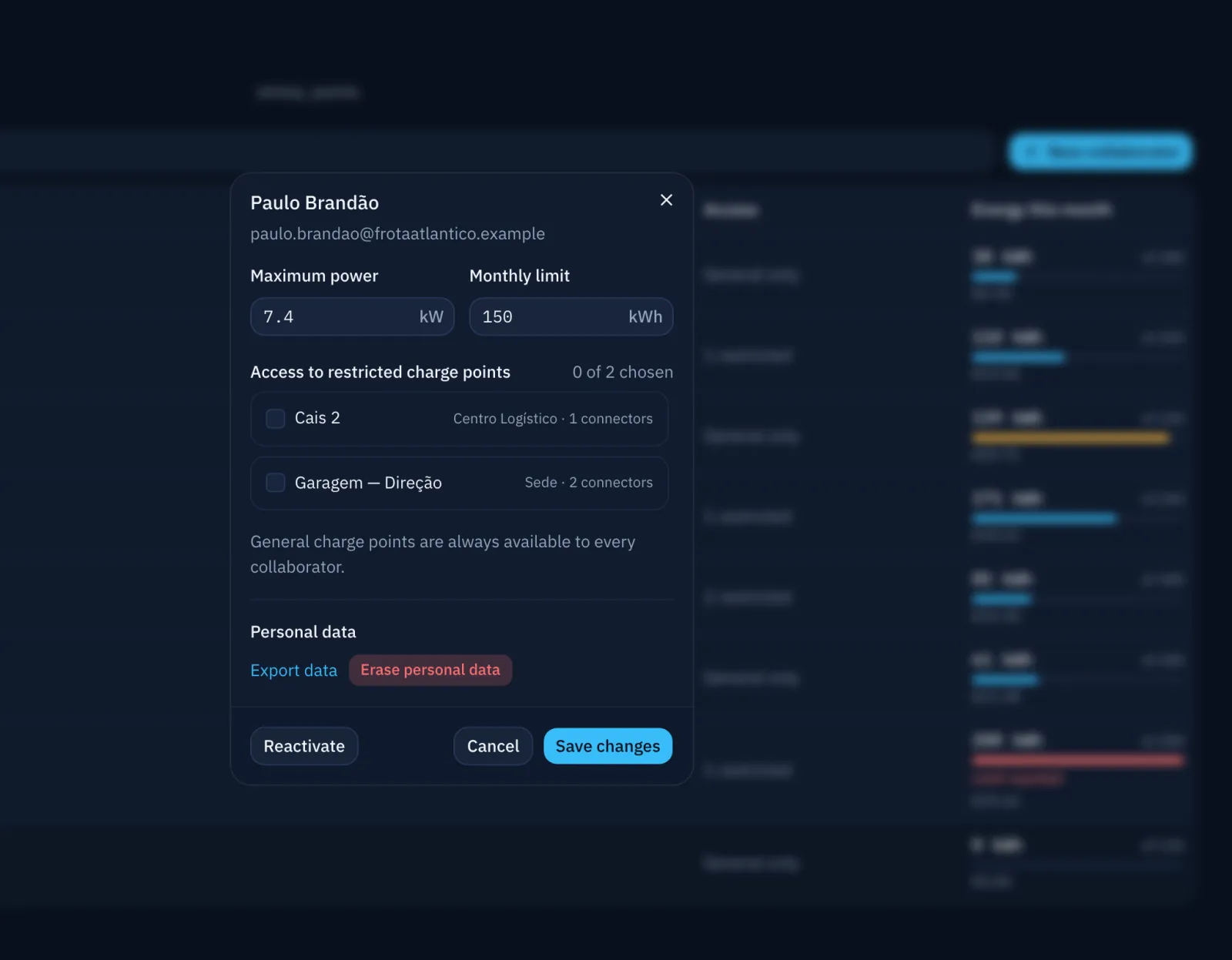
A collaborator's data exports to a file, and they can download their own. When someone leaves, their personal data is erased and their charges stay in the history as "Removed collaborator".

Charges older than 5 years no longer say whose they were, and the audit log is kept for 2 years.

Collaborators › Personal data

A deactivated collaborator's panel with the options to export and erase their personal data.
How it works

From charger to first charge

  1. Add the charger

    Set the address and Charger ID the platform shows on the charger. Any make that uses OCPP 1.6J or 2.0.1 works.

  2. Add the collaborators

    Name and email, monthly limit and power. They sign in with a 6-digit code sent by email.

  3. Charge

    The collaborator scans the connector's QR code with their phone or taps their card on the charger.

Contact

Request a demo

Tell us how many chargers and people you have. We reply to your email.

We use these details only to answer your request.